
 Copyright 2026 Infinitybox, LLC. All Rights Reserved.
 How to Enable inRESERVE with the MASTERCELL NGX
Table of Contents
- The Problem: Battery Drain on Modern Classics
- How inRESERVE Works
- Legacy Kit vs. IPM1 Kit
- Before You Start
- Step 1: Open the inRESERVE Menu
- Step 2: Enable inRESERVE
- Step 3: Select the POWERCELL
- Step 4: Select the Output
- Step 5: Select the Time
- Step 6: Select the Voltage Threshold
- Wiring the inRESERVE Solenoid
- Questions?
The Problem: Battery Drain on Modern Classics
Classic cars were simple. An old car with mechanical switches and a set of points had practically no draw from the battery when the ignition was off. The car could sit in a garage for months with no issues. As our customers add computer-controlled EFI systems, audio systems, alarms and our Infinitybox system, the steady-state draw from the battery increases significantly. If the car sits for an extended period, that draw can drain the battery to the point where it will not start. Deep discharging is also detrimental to battery life, shortening the overall lifespan of the battery.
Our inRESERVE Active Battery Management System solves this problem by protecting your battery in two ways. First, it always preserves enough stored energy in the battery to crank the engine and get your car started. Second, it protects the battery from being deep-cycled. Deep cycling a battery can cause permanent damage and dramatically shorten its lifespan. inRESERVE monitors the battery voltage when the ignition is off and disconnects the battery before either of these becomes an issue. This post shows you how to enable inRESERVE on the MASTERCELL NGX in your IPM1 Kit.
How inRESERVE Works
The inRESERVE kit includes a latching solenoid that sits between the battery and the rest of the electrical system. The solenoid is a simple mechanical device — the intelligence is in the MASTERCELL NGX. When the ignition is off, the MASTERCELL NGX continuously monitors the battery voltage. If the voltage drops below the threshold for longer than the configured time period, the MASTERCELL NGX commands a POWERCELL output to send a momentary pulse to the solenoid. That pulse latches the solenoid open, disconnecting the battery from the rest of the system and preserving the remaining charge.
The inRESERVE kit also includes a momentary push button. If you know your car will be sitting for a while, you can press the button to manually disconnect the battery before the voltage drops. When you are ready to drive again, press the button to reconnect the battery and you are good to go.
Legacy Kit vs. IPM1 Kit
With our legacy 20-Circuit Kit, inRESERVE had to be pre-programmed on the MASTERCELL at the factory. If a customer ordered inRESERVE with their kit, we configured the MASTERCELL before it shipped. If they decided to add inRESERVE later, we had to reprogram their MASTERCELL to enable the feature. This meant extra lead time and coordination.
The IPM1 Kit eliminates that dependency entirely. The MASTERCELL NGX lets you enable inRESERVE yourself, right from the inSIGHT display. You choose the POWERCELL, the output, the timing and the voltage threshold — all without any factory involvement. You can add inRESERVE to your system whenever you are ready.
Before You Start
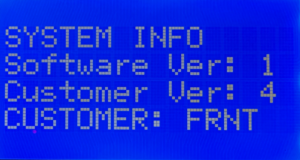
To enable inRESERVE, your MASTERCELL NGX must be running software version 1.3 or higher. If you are not sure which version you are running, follow the steps in our How to Check the Software Version on Your MASTERCELL NGX post to find out.
You will also need your IPM1 Kit configuration sheet so you can identify which POWERCELL outputs are available for inRESERVE. The available outputs are the OPEN outputs on your configuration sheet. These are universal and auxiliary outputs that are not assigned to fixed functions like turn signals, ignition or starter.
Step 1: Open the inRESERVE Menu

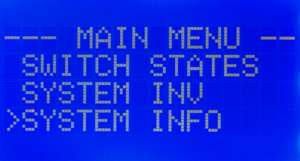
Press and release the HOME button on the MASTERCELL NGX to bring up the Main Menu. Use the SCROLL UP and SCROLL DOWN buttons to move the cursor to the inRESERVE option. Press and release SELECT.
Step 2: Enable inRESERVE

The next screen gives you the option to enable or disable inRESERVE. By default, inRESERVE is disabled. Use the SCROLL UP and SCROLL DOWN buttons to move the cursor to ENABLED. Press and release SELECT.
Step 3: Select the POWERCELL
Next, you need to select which POWERCELL will control the inRESERVE solenoid. You will see options for Front PC, Rear PC and Powercell 3. Choose the POWERCELL that is closest to where the solenoid and battery are located in your car. If the battery is in the trunk, select Rear PC. If the battery is under the hood, select Front PC. The Powercell 3 option is only used for custom configurations developed with our team.
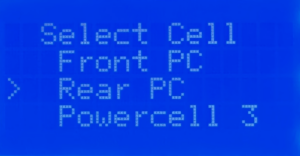
Use the SCROLL UP and SCROLL DOWN buttons to move the cursor to the POWERCELL you want. Press and release SELECT.
Step 4: Select the Output
The MASTERCELL NGX will show you the available POWERCELL outputs based on which cell you selected in the previous step. These are the OPEN outputs on your configuration sheet. In the standard front-engine configuration, the available outputs on the Front POWERCELL are outputs 7, 8, 9 and 10. On the Rear POWERCELL, the available outputs are 4, 5, 6, 7, 8 and 9.
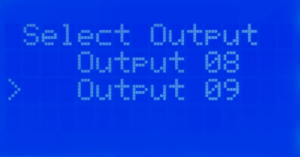
Use the SCROLL UP and SCROLL DOWN buttons to move the cursor to the output you want to use for inRESERVE. Press and release SELECT.
Step 5: Select the Time
Next, you need to select the time delay. This is the amount of time that the battery voltage must remain below the threshold before inRESERVE activates and disconnects the battery. Your options are 15 minutes and 20 minutes. The default is 15 minutes and we strongly recommend keeping this setting. This gives enough time for brief voltage dips during normal operation without triggering a disconnect.
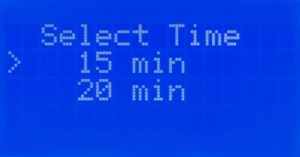
Use the SCROLL UP and SCROLL DOWN buttons to move the cursor to the time you want. Press and release SELECT.
Step 6: Select the Voltage Threshold
The last setting is the voltage threshold. This is the battery voltage level that triggers the time delay. When the ignition is off and the battery voltage drops below this threshold, the countdown begins. Your options are 12.2V and 12.3V. We strongly recommend 12.2V. This is the standard threshold that we used on our legacy kits and provides the right balance between protecting the battery and avoiding unnecessary disconnects.
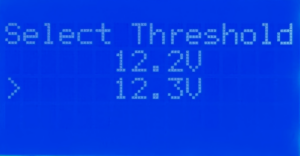
Use the SCROLL UP and SCROLL DOWN buttons to move the cursor to the voltage threshold you want. Press and release SELECT. Your inRESERVE settings are automatically saved when you press SELECT on this final screen.
Wiring the inRESERVE Solenoid
Once you have enabled inRESERVE on the MASTERCELL NGX, you need to wire the solenoid. The inRESERVE kit includes everything you need: the latching solenoid, a MEGA fuse and fuseholder, a momentary reset button, an inline fuse holder with a 10-amp fuse, ring terminals, terminal boots and 14 AWG wire. Download the inRESERVE wiring schematic for the complete wiring details. Do not run the starter current through the solenoid.
Make sure that the reset button is mounted in an accessible location. When inRESERVE disconnects the battery, the car will have no power. You need to be able to reach the button to reconnect the system. The button included with the kit can be replaced with any momentary button rated to at least 7A at 12V.
Questions?
If you have any questions about how to enable inRESERVE or anything else about your Infinitybox system, our technical support team is here to help. Give us a call at (847) 232-1991 or fill out our contact form and we will get back to you.
 Copyright 2026 Infinitybox, LLC. All Rights Reserved.
 Copyright Infinitybox, LLC 2021. All Rights Reserved.
  Copyright Infinitybox, LLC 2021. All Rights Reserved.
  Copyright Infinitybox, LLC 2021. All Rights Reserved.